





Connecting A Mouse To Your iPhone or iPad
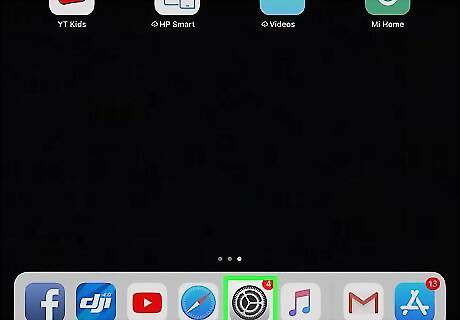
Open the Settings app iPhone Settings App Icon. It has an icon that resembles two silver gears.
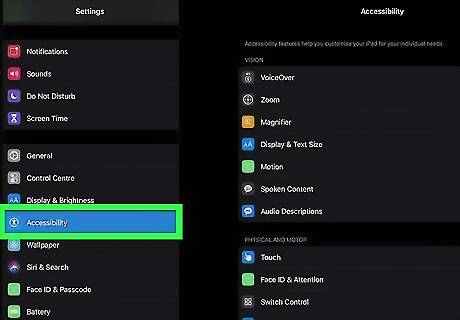
Scroll down and tap Accessibility. It's next to a blue icon with a person inside a circle.
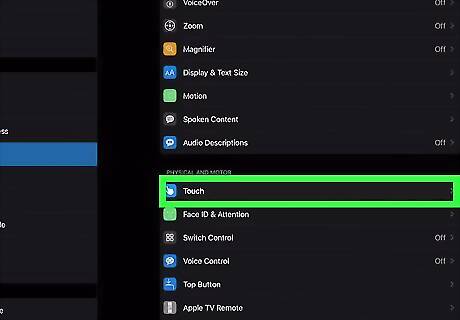
Tap Touch. It's under "Physical and Motor" in the Accessibility menu in the Settings app.
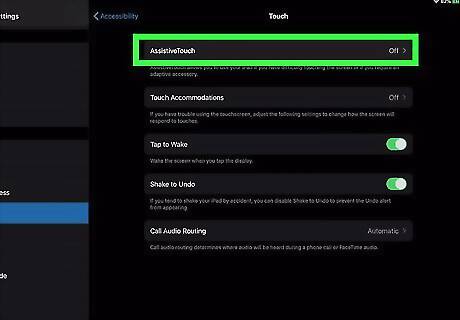
Tap AssistiveTouch. It's at the top of the Touch menu in the Accessibility settings.
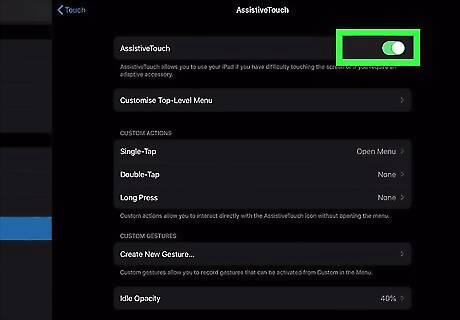
Tap the toggle switch iPhone Switch On Icon next to "AssistiveTouch". It's at the top of the AssistiveTouch menu. This enables AssistiveTouch. If you are using a wired or USB mouse, you can connect it now using a Lightning to USB adapter on older and low-end iPad models. For 2018 iPad Pro models and later, you'll need to connect your mouse using a USB A to USB C adapter. Your mouse should start working immediately. If you are using a Bluetooth mouse, continue to the next step. Some USB mouses and adapters may not have enough power to work with your iPhone or iPad.
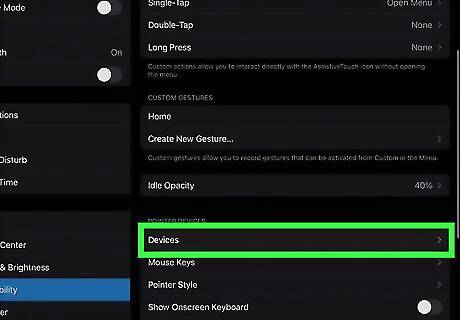
Scroll down and tap Devices. It's below "Pointer Devices" in the AssistiveTouch menu.
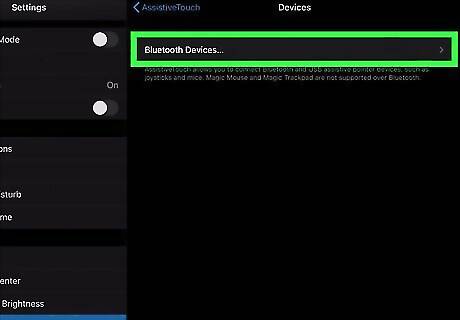
Tap Bluetooth Devices. It's at the top fo the "Devices" menu. This starts scanning for nearby Bluetooth devices.

Put your Bluetooth mouse in pairing mode. The way you put a Bluetooth mouse in pairing mode is different depending on the make and model of the mouse. Many Bluetooth mouses have a button you press and hold to put the mouse in pairing mode. Consult the user's manual or manufacturer's website to learn how to put your Bluetooth mouse in Pairing mode. Some Bluetooth devices require you to enter a 4 digit pin in order to pair the device. Consult your user's manual to see what PIN you should enter. If you don't know what PIN to enter, try 0000.
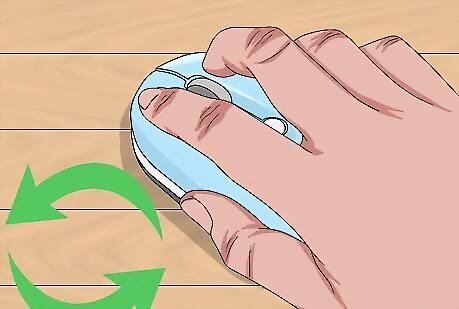
Tap your Bluetooth mouse. When your Bluetooth mouse appears in the list of devices, tap it to pair your device. Your mouse should start working with your iPhone or iPad.
Adjusting the Mouse Settings
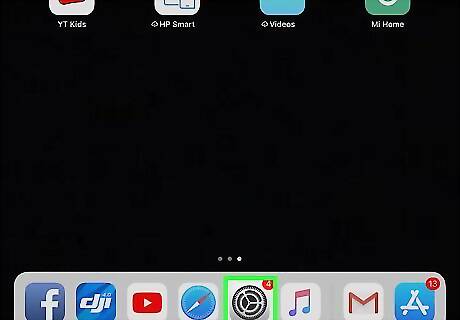
Open the Settings app iPhone Settings App Icon. It has an icon that resembles two silver gears. Using a mouse on your iPhone or iPad is a little different than using a mouse on your Mac or PC. You may need to adjust some of the settings in order to comfortably use a mouse with your iPad or iPhone.
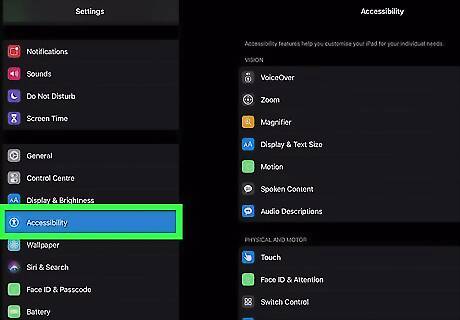
Scroll down and tap Accessibility. It's next to a blue icon with a person inside a circle.
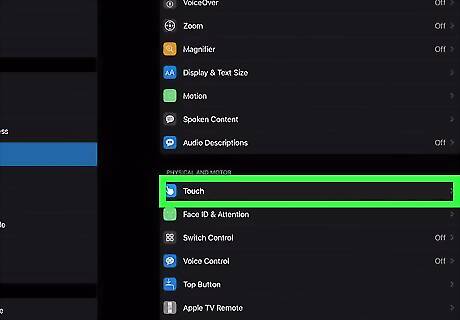
Tap Touch. It's under "Physical and Motor" in the Accessibility menu in the Settings app.
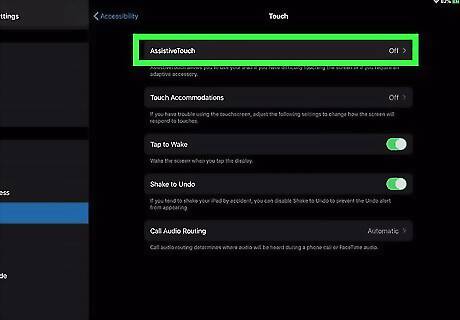
Tap AssistiveTouch. It's at the top of the Touch menu in the Accessibility settings.
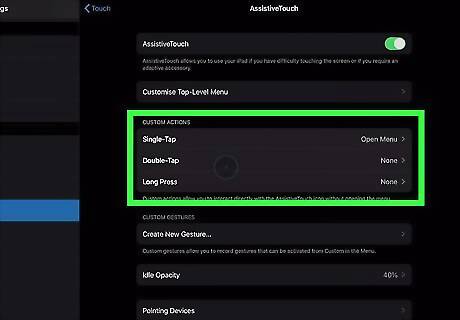
Select custom actions. The options below "Custom Actions" allows you to select custom actions for single-tap, double-tap, and long press. The default action for single-tap is "Open Menu" with no actions assigned to double-tap or Long Press. To assign a custom action, tap Single-Tap, Double-Tap, or Long Press and then select an action from the list.
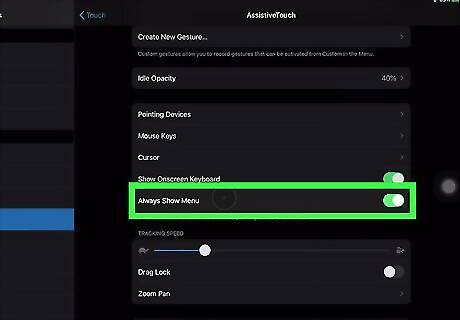
Tap the toggle switch iPhone Switch On Icon next to "Always Show Menu". By default, the AssistiveTouch menu is always on while using a mouse with your iPhone or iPad. You can click and drag it to move it around. If you wish to hide it, click or tap the toggle switch next to "Always Show Menu". By default, you can right-click to display the AssistiveTouch menu.
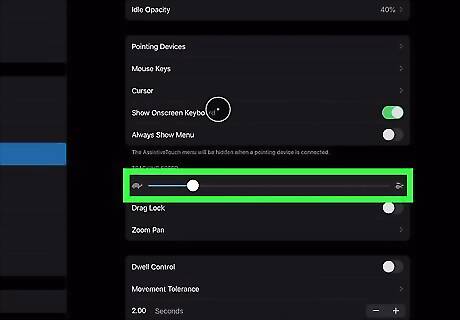
Adjust the mouse speed. Use the slide bar below "Tracking Speed" at the bottom of the AssistiveTouch menu in Settings to adjust the speed of the mouse cursor. Drag the slider towards the turtle icon to make it slower. Drag the slider towards the rabbit icon to make it faster.
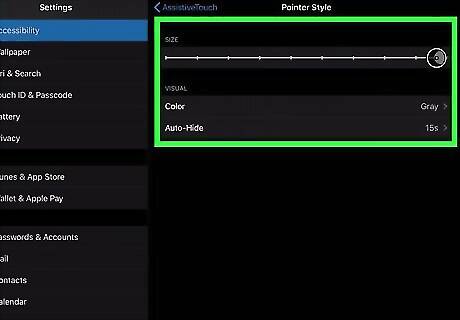
Tap Pointer Style to adjust the mouse cursor. This menu allows you to customize the mouse cursor. By default, it's a grey circle. Use the following options to adjust the mouse cursor. Use the slider bar below "Size" to change the size of the cursor. Tap Color and then select a color to change the color of the mouse cursor. Tap Auto-Hide and use the toggle switch to turn Auto-Hide on or off. Press the plus (+) or minus (-) buttons to adjust the time before the mouse cursor auto-hides.
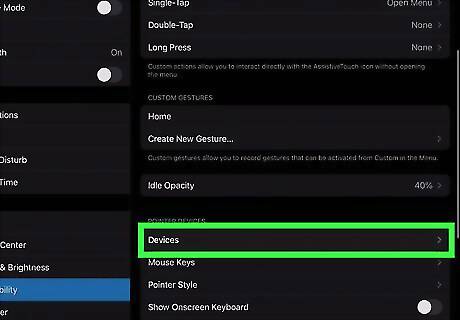
Tap Devices. It's below "Pointer Devices" in the AssistiveTouch menu in Settings. This displays a list of devices you have connected to your iPhone or iPad.
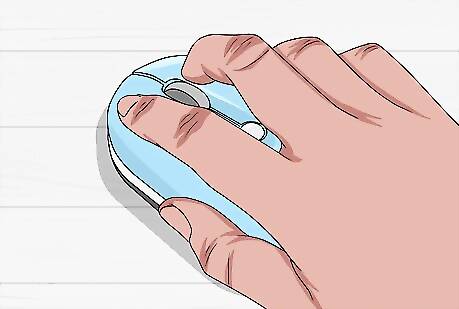
Tap your mouse. This displays the mouse button functions.
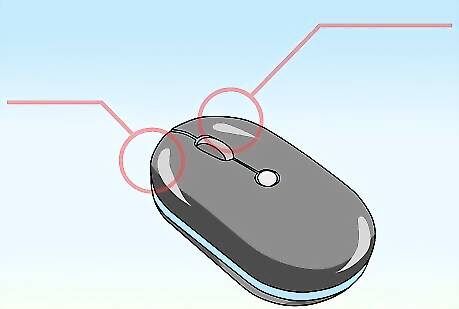
Select custom mouse button functions. To change the mouse button functions for the left, right, or middle buttons, tap a button and select an action from the list. By default, the mouse buttons are as follows: Left Button: Single-tap for selection. Right Button: Display AssistiveTouch menu. Middle Button: Return to Home Screen.











Comments
0 comment